

Client Login

We use the JobTread Client Portal so each of our customers can have one place to access and manage all the information related to their project.
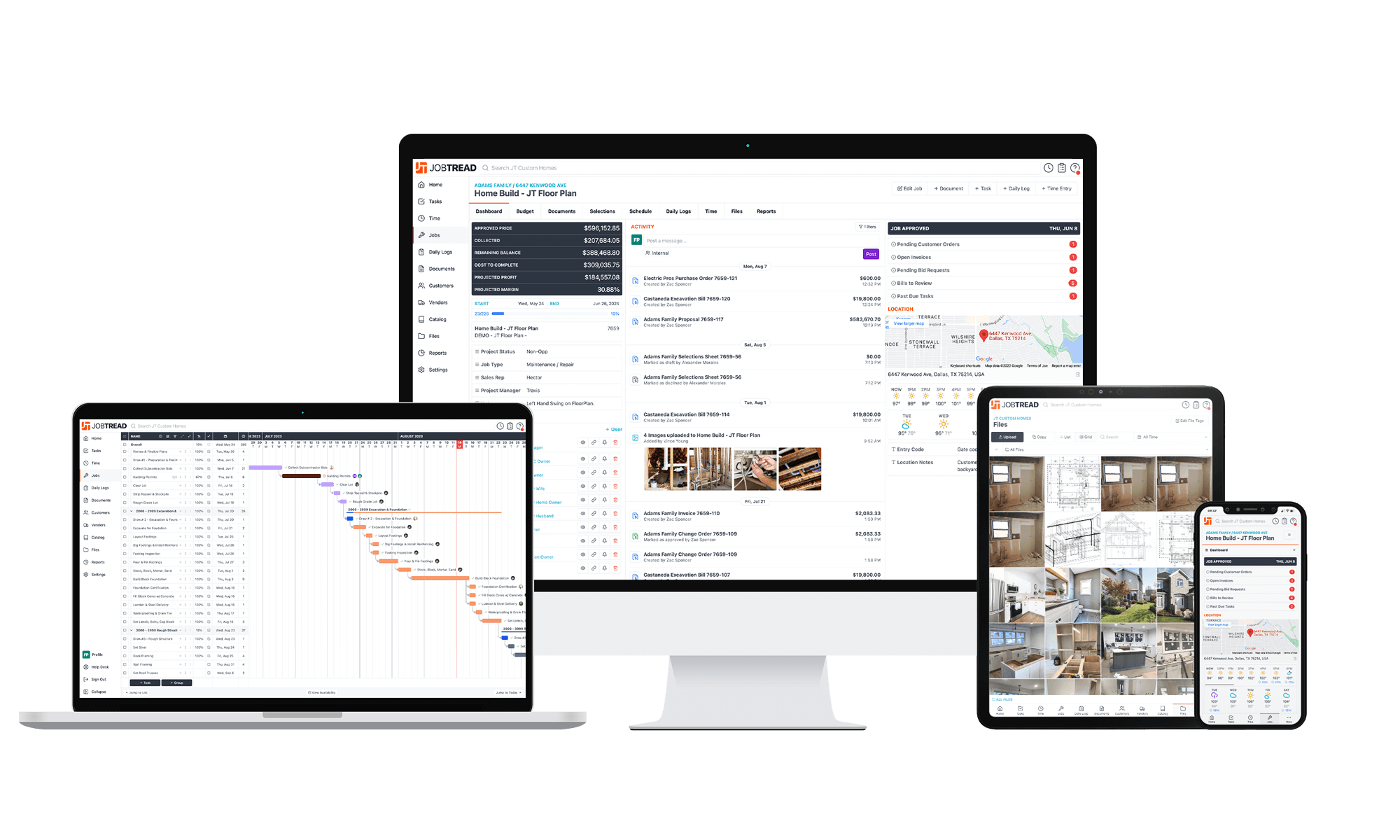
Everything the Hammertime team sends you through JobTread will automatically give you access to your Client Portal without logging in. However, a password is required for added security if you add JobTread as a mobile app or if you plan to make payments through your portal.
Create Your Password
If You Are Already Logged In
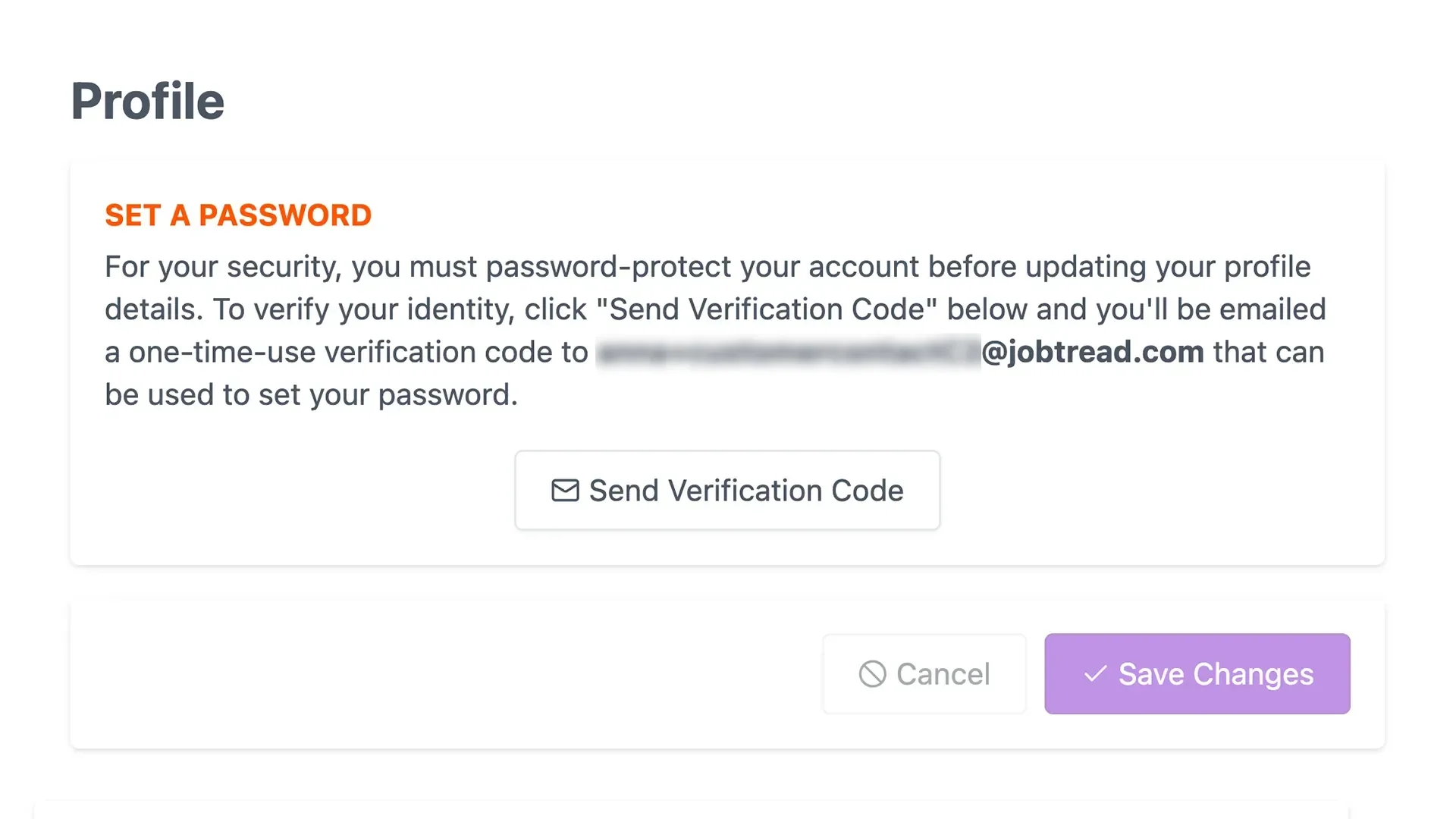
While in your portal, click your initials in the top-right corner to open your Profile
Click Send Verification Code to verify your email address.
You’ll receive an email with a verification code - enter this code in the Code field on your Profile
Enter a password in the Password field
Click the purple Continue or Save Changes button at the bottom
If You Are NOT Logged In
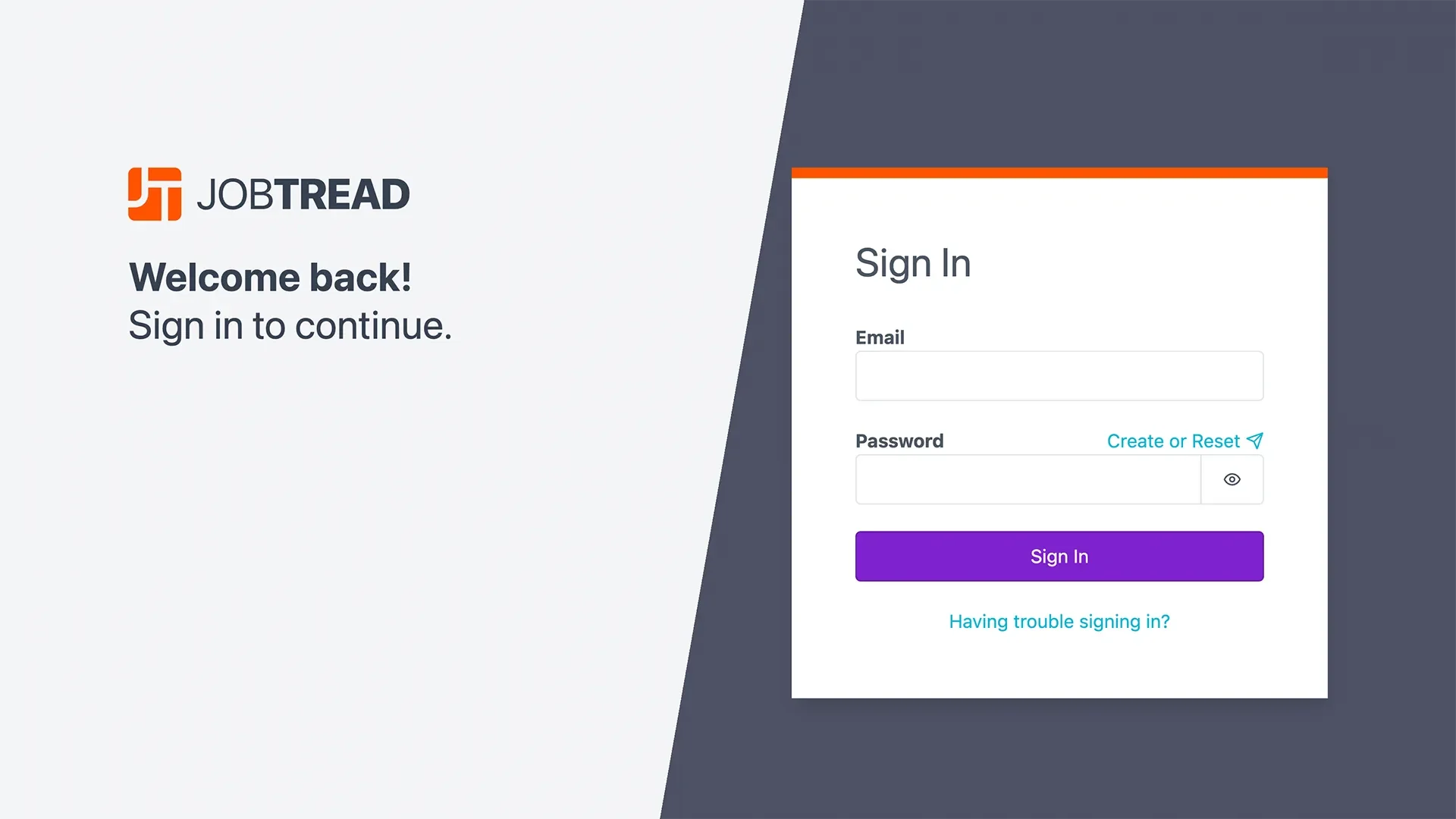
• Visit app.jobtread.com
• Enter your email address
• Click Create or Reset above the Password field - this will send you a verification email with a link to create or set your password
• Enter the new password, then click the Set Password button
Set Up The Mobile App
Apple Devices
On your device, open the Safari app and navigate to app.jobtread.com
Tap the Share icon at the bottom center of the screen
Scroll down and select Add to Home Screen
Tap Add
Open the new JobTread app on your home screen
Sign in to JobTread to complete the process - from this point forward when launching the app, you shouldn’t need to sign in again!
Android Devices
On your device, launch the Chrome app and navigate to app.jobtread.com
Tap the More icon in the top right corner of the screen
Select Install App
Tap Add
Tap on the new JobTread app on your Home Screen
Sign in to JobTread to complete the process - from this point forward when launching the app, you shouldn’t need to sign in again!
Client Portal Tools
Your Job Dashboard will show you the financial summary of your project, the Hammertime team’s contact information, and any recent activity that’s been added to your Portal.
Documents
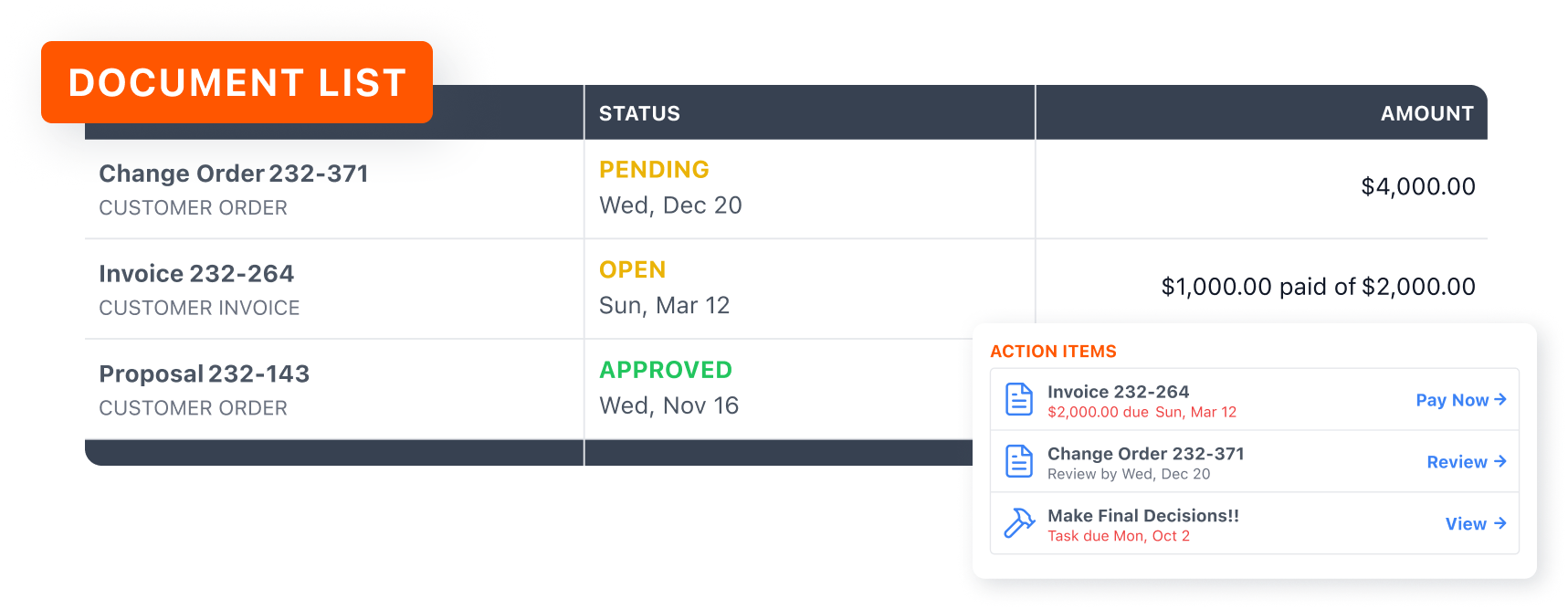
In the Documents tab, you’ll find any estimates, change orders, and invoices for your project from the Hammertime team. This is also where you’ll find Selection Sign-Off documents that you’ll use to review and approve your chosen selections packages.
Digital Approvals
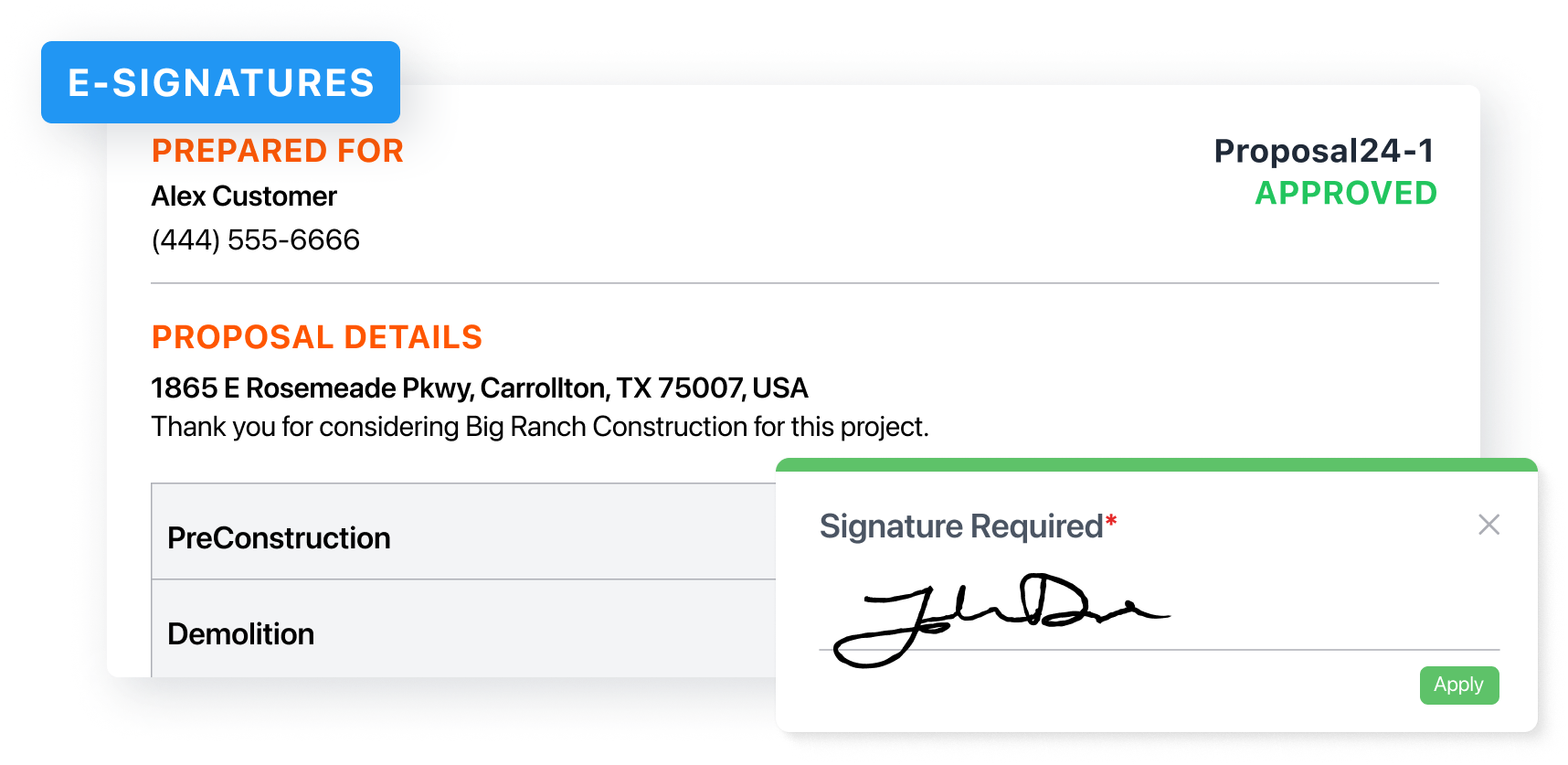
You’ll have the ability to electronically sign and approve estimates, change orders, and selections, as well as make online ACH payments through your invoices.
Schedule
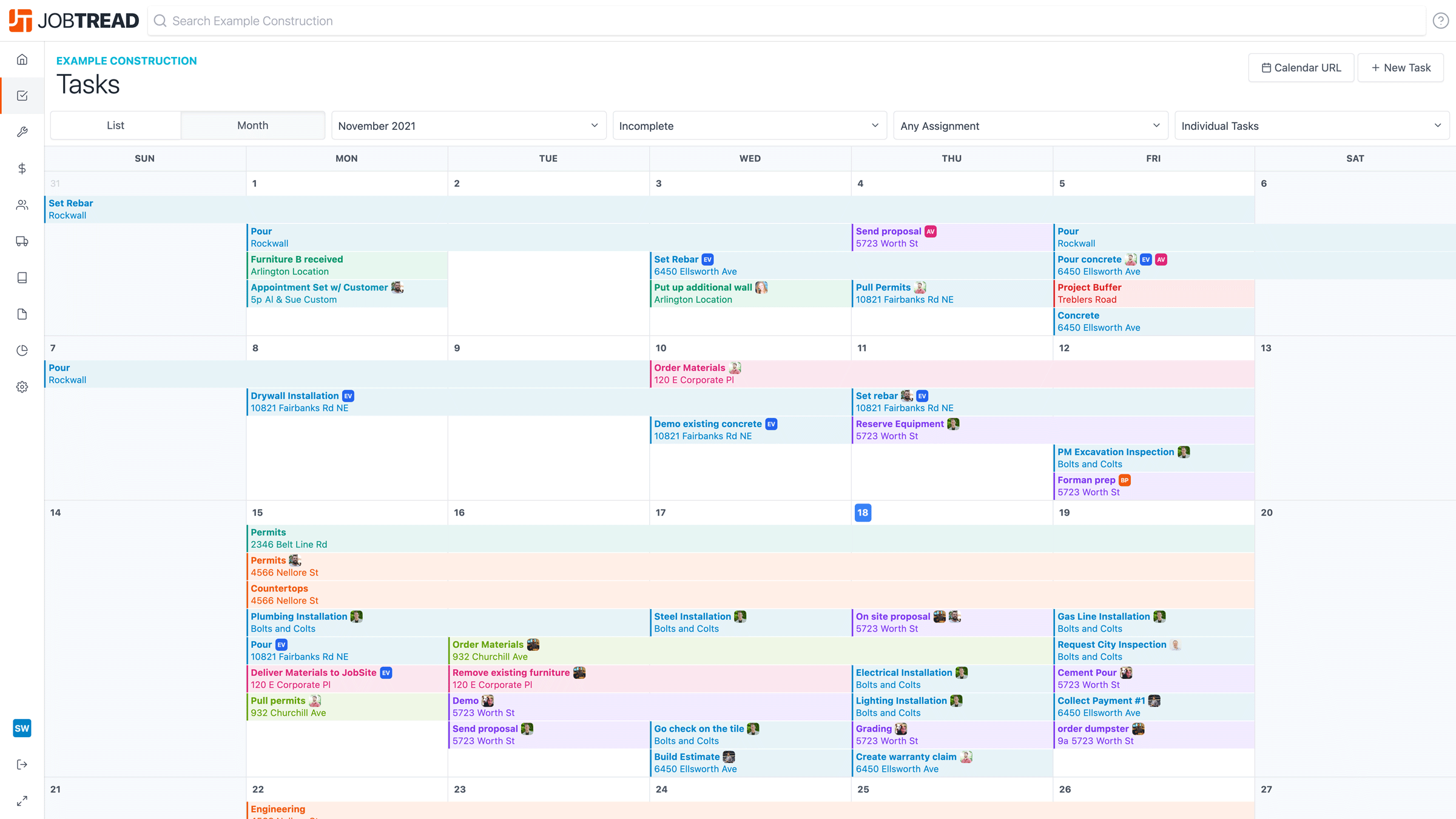
You can see your full project schedule to easily see what’s been completed, what’s coming next, and when major milestones are expected to be reached. Many items in the schedule will first be listed as ‘Tentative’ until we progress through the project and schedule various subcontractors.
Messages
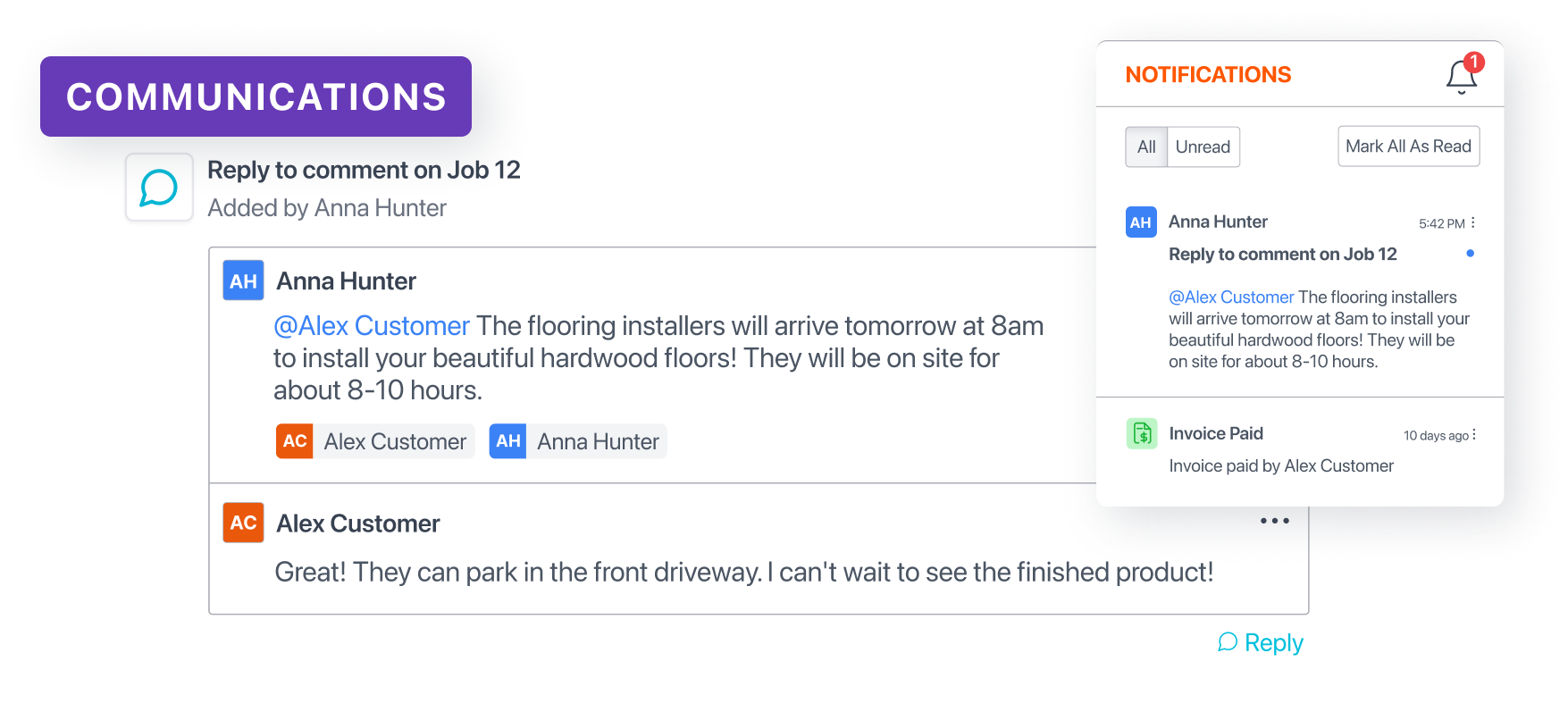
The Hammertime team will use the Messages feature to simplify and streamline all the communication for your project. You can send anyone on the team direct messages or comment on any item within your Portal.
Daily Logs
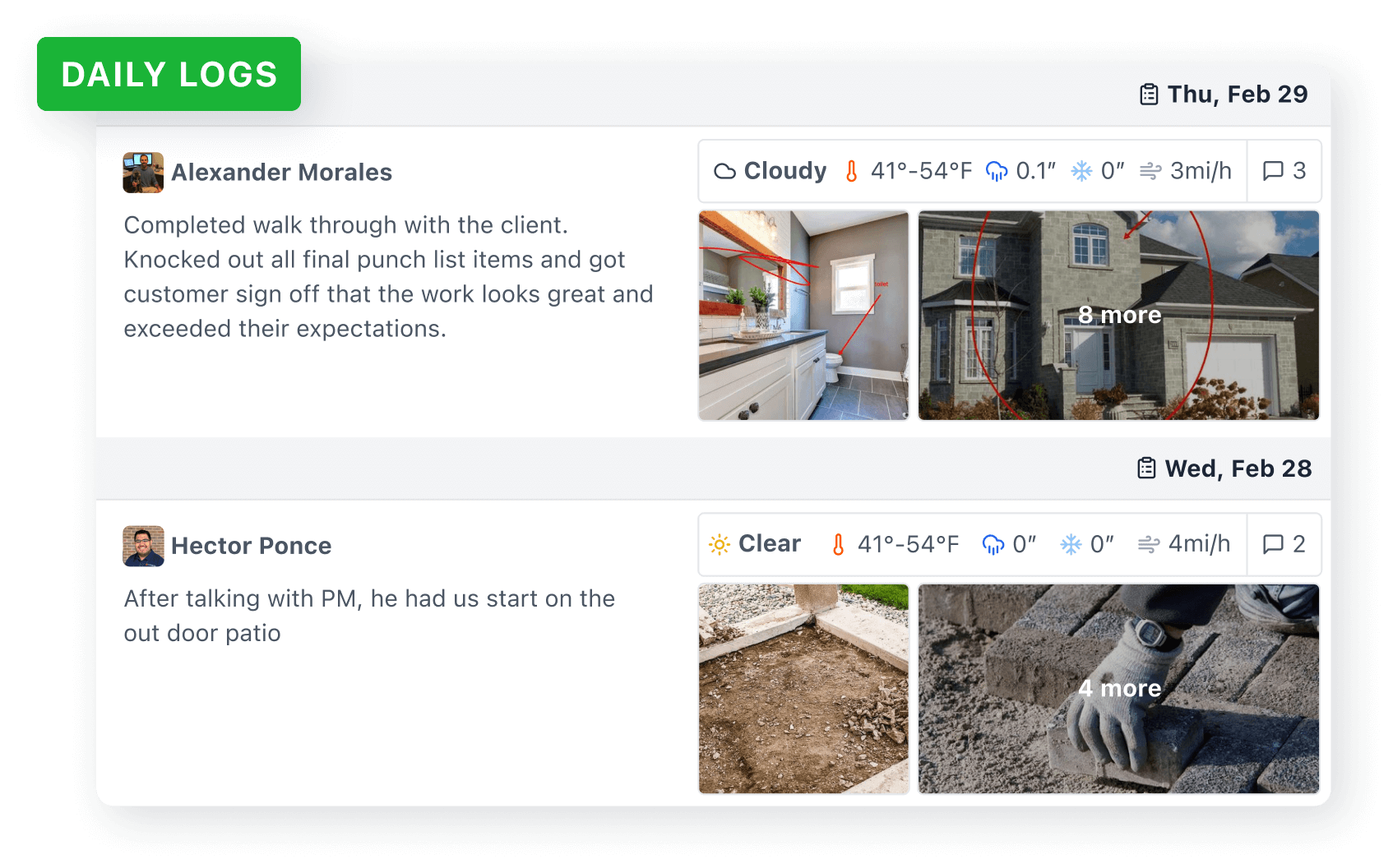
The Hammertime team will periodically send you Daily Log updates where they’ll give you highlights and photos of the work completed to keep you in the loop about the progress and show you exciting updates that took place that day.
Files
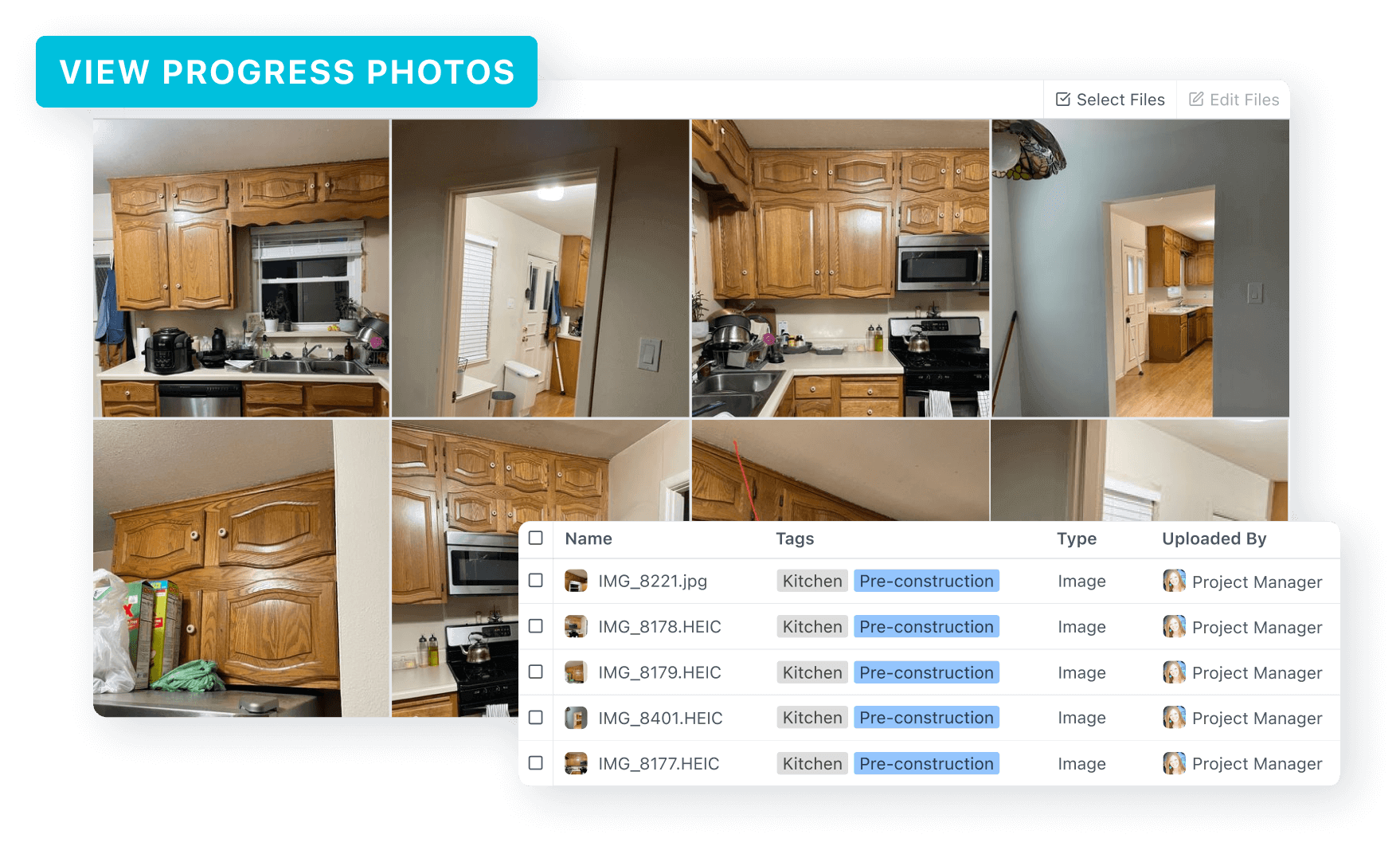
All the files related to your project, including the plans, building permit, and progress photos, will be stored here for you to quickly access in one location.